 Seeeasy App Docs
Alarm Information
Filter, view, clear and edit alarm messages
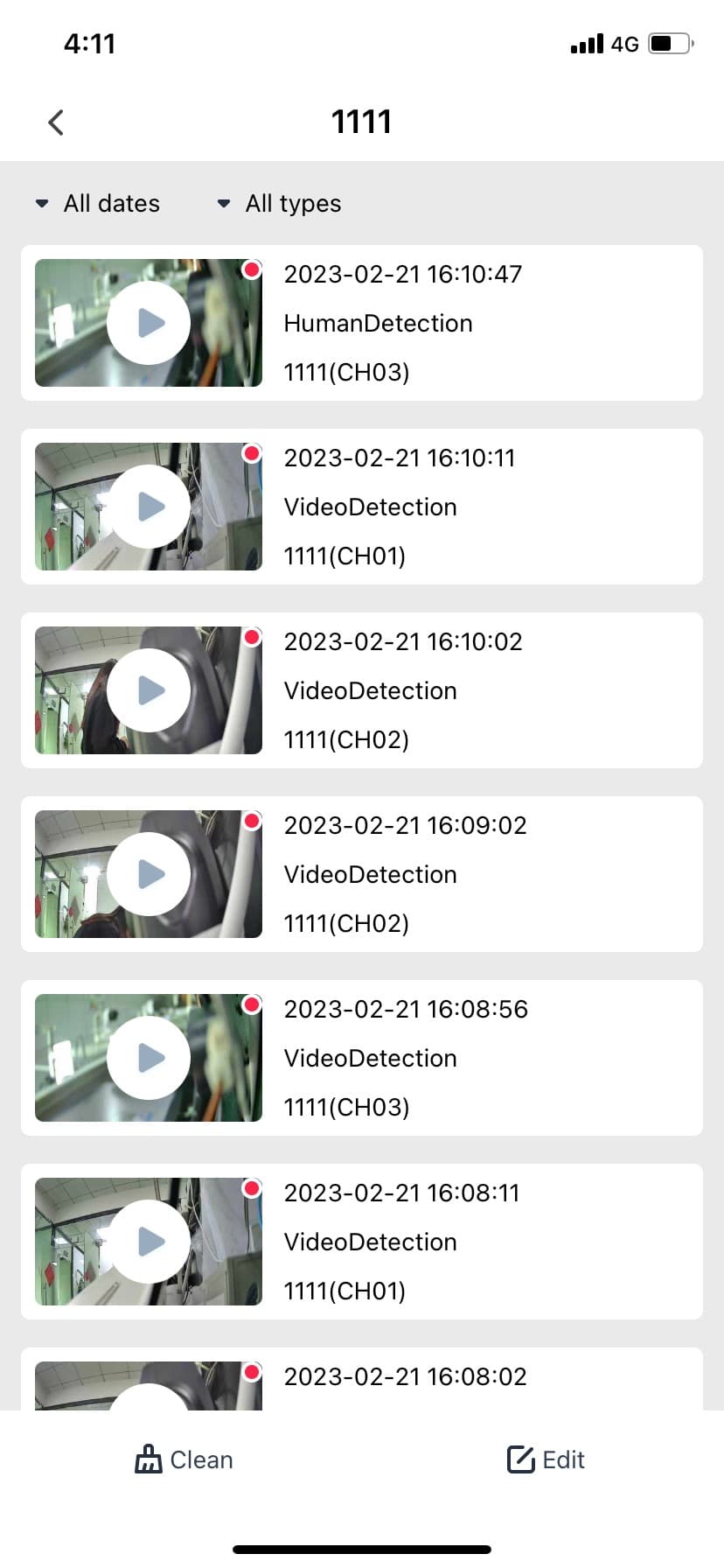
After logging into the app, you enter the device list interface by default. You can click the alarm button of each device to enter the alarm interface of that device. In this interface, the alarm messages of the device are arranged from bottom to top according to the latest time.
Alarm Info Filter
You can filter the current alarm messages that need to be viewed by date or alarm type in the upper left corner, which greatly improves viewing efficiency, as shown in Figure 5.1.
Alarm Info Enquiry
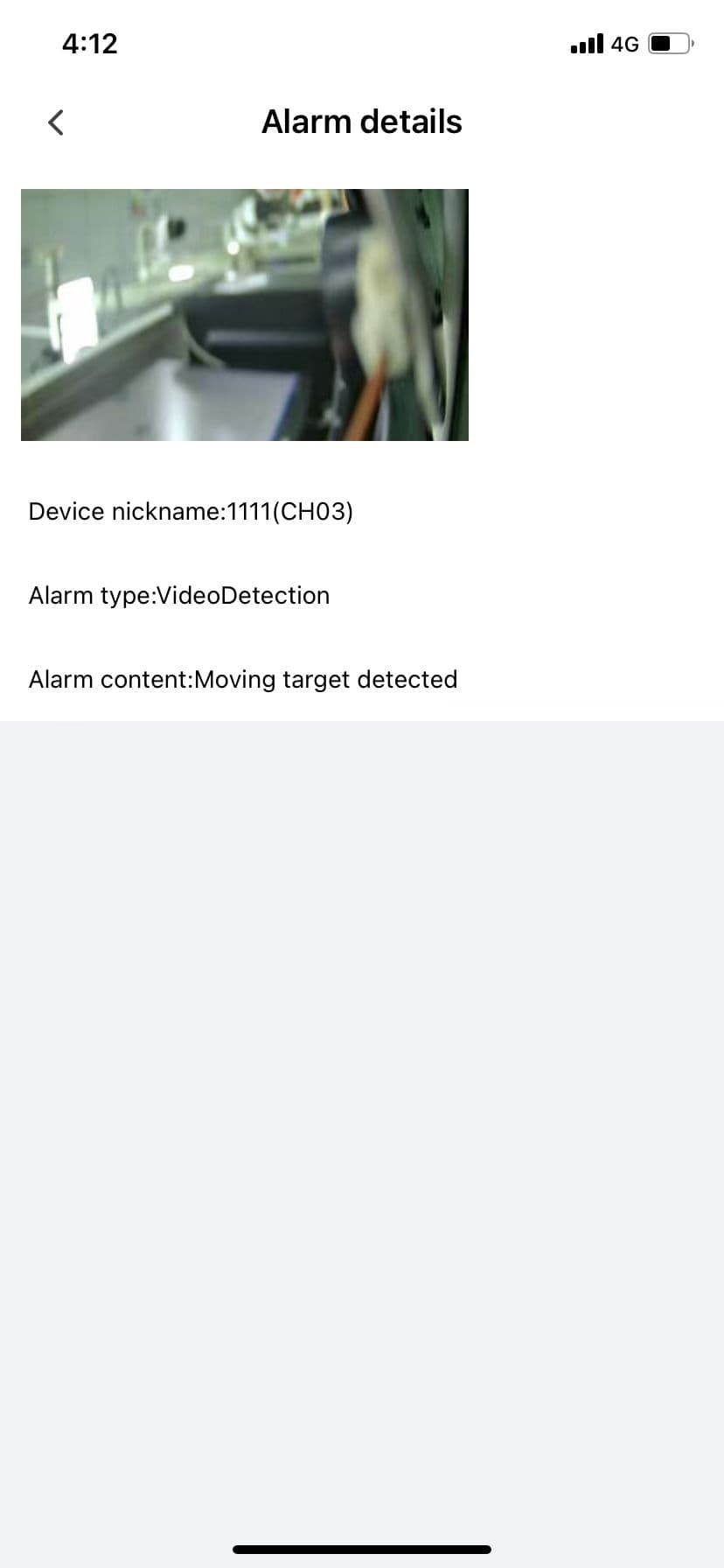
You can view each alarm message in detail through the alarm information, such as the device alias, alarm type, and alarm content, as shown in Figure 5.2.
Alarm Info Clear
The alarm message interface is different from other interfaces: the alarm messages are not displayed all at once. We use pagination — when you pull to the bottom of the interface, the message content of the next page is loaded automatically until the end. Therefore, the clear function is also available for all messages displayed.
Alarm Info Edit
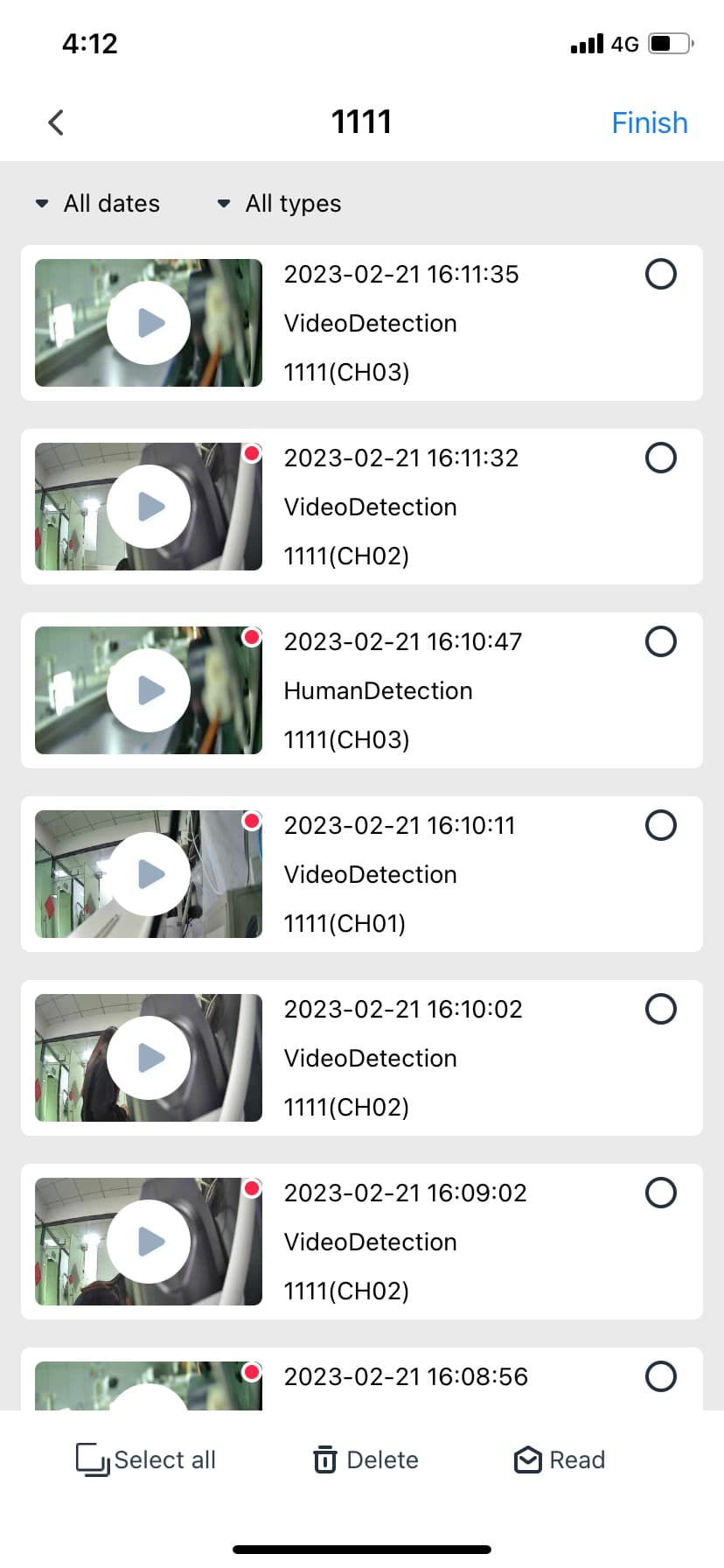
There is an edit function in the lower right corner of the alarm message interface. Click it to edit alarm messages. The function is divided into two parts: read and delete, as shown in Figure 5.3.